Tutorials

Desert Mountain Lake — An Introduction to Fill

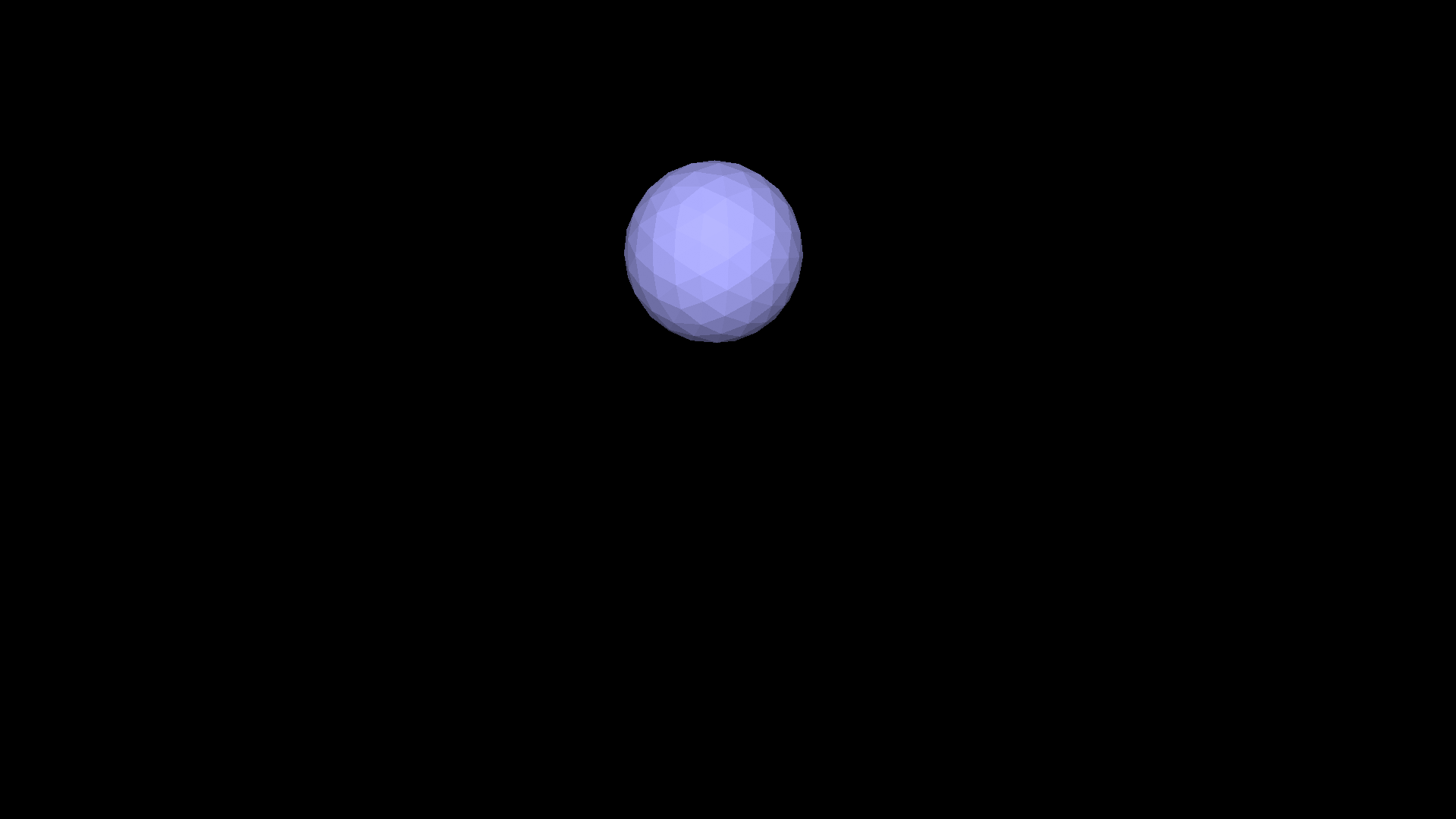
In a recent update to turtleSpaces, we added the ability to create arbitrary shapes, using the beginfill and endfill primitives.

To create a shape, you simply declare beginfill , draw out its borders and then declare endfill. If the lines do not cross each other, then the shape should be created.

For example:

beginfill forward 50 right 90 forward 50 endfill

will create a triangle. But we already have plenty of ways to create triangles, right?
Read More »

Logo and the Language Microworld

Logo isn’t just all about the turtles! When Logo was first being developed, there were no graphical displays — output was simple text on teletypes, which printed out interactions with the computer on paper. When the developers of Logo went into classrooms to test out their invention on students, all they had were teletypes.

As a result, the first Logo ‘microworld’ was the language microworld, not the geometry microworld which is more often associated with Logo. Logo was designed with many powerful commands used to manipulate strings and lists. Logo is based on Lisp, which stands for List Processing, a programming language in which data and code are the same, and are interchangeable and manipulatable by the running program. In Lisp, as in Logo, programs can modify, create and run themselves.

Read More »

Project Idea: How to Code a Hangman-style game in Logo

You can open this project in the web-based IDE environment by following this link: /weblogo/pubplayer.html?pub=122

Due to Logo’s enhanced string-handling capabilities and built-in dictionary, making Hangman-style games in turtleSpaces is easy-peasy!

The mechanics of a Hangman game are simple: the computer chooses a word, and then the player chooses letters. If the letters they choose are in the chosen word, then those letters are revealed. If they aren’t in the chosen word, the ‘hanged man’ is built — although these days we probably shouldn’t do that due to nasty historical context, and choose something else.

Read More »

Logo Game Design Introduction: Downhill Skiing

Downhill Skiing exercises Logo’s list handling capabilities and leverages turtleSpaces 3D functionality to create an engaging yet simple game.

Once loaded, click the flag icon to start.

Click here to open this project in the web IDE.

Herein lies a wonderful introduction to game development in turtleSpaces. The game mechanic behind downhill is simple: the player travels down the ski slope, avoiding randomly-positioned trees while shifting left and right to end in the target zone.

Read More »

Alpine Trees: an Introduction to Terrain

turtleSpaces new terrain functionality provides some great opportunities for simple coding examples with few lines of Logo code, in this case less than 30.

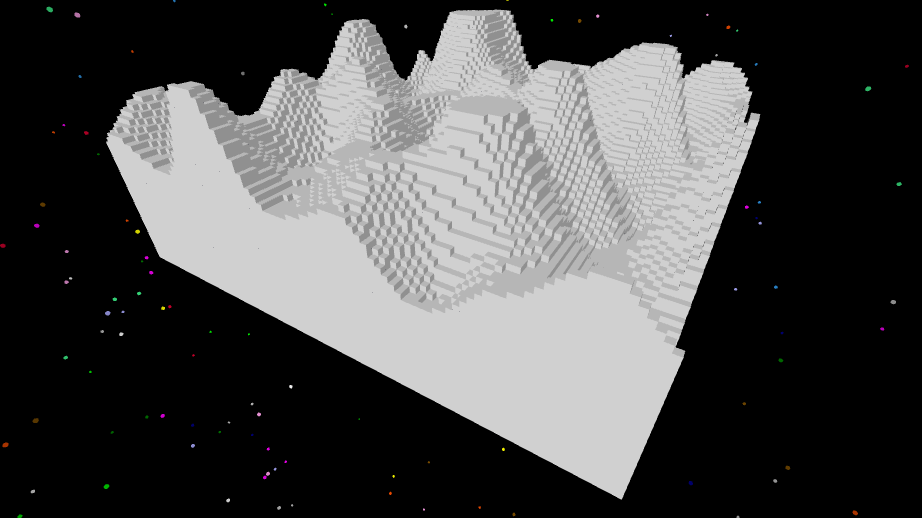
First, we need to introduce the setterrain primitive. setterrain creates ‘terrain’ or a contiguous object of varying elevation.

The above is an example of the object created by setterrain. The setterrain primitive takes a number of parameters, and is a good opportunity to explain the different types of parameters used in turtleSpaces to students.

Read More »

A Starry turtleSpaces Logo Introduction Part One: Starfield

Traditional Logo had new users build a house as an introduction, but due to turtleSpaces’ 3D nature, starfields are much more impressive, so we’ll start there.

▶ View interactive demo

Click and drag the window above to see all the stars!

Cool huh? First, we’re going to create this simple starfield that wraps around the camera position.

We’ll start by creating the procedure:

Then we’ll add in some setup stuff:

Read More »

A Starry turtleSpaces Logo Introduction Part Three: Starwarp Improvements

In the previous episode, we created a progressively-generated starfield we moved through with the camera turtle, creating a cool flying-through-space effect.

But it has a few issues we should address. Firstly, it is possible for a star to end up flying through the windscreen of our spaceship! Which is cool, but looks a bit strange. Second, as the program runs it piles up all of these stars behind us, which can slow everything down. We need to get rid of those. Finally, it would be pretty neat if we could have the stars ‘pop’ into view, so we’ll explore how we can do that.

Read More »

A Starry turtleSpaces Logo Introduction Part Two: Starwarp

In this second part of our introduction to turtleSpaces Logo, we’re going to take the stars we made in the first part, and create a ‘rolling’ starfield we are going to move through using the camera turtle, to create a Star Trek-style warp effect.

/img/uploads/2021/09/starwarp.webm

To create this effect, the drawing turtle, Myrtle, is going to create stars deep into the space. The camera turtle, Snappy, will move forward (the camera turtle points into the space, towards Myrtle, by default) following Myrtle as she moves deeper, creating stars.

Read More »

How to create and 3D print a chess pawn in turtleSpaces Logo

First, open the weblogo.

Then, click in the bottom right REPL area

Create the ‘head’ of the pawn using the ico primitive


If you start the line with a cs, you can use the up arrow to go back to the line after adding each command (and seeing the result) to edit what you’ve done and add more! Append all of the following instructions on to the same line, then just keep re-executing it.

Read More »

A Guide to 3D Printing Using turtleSpaces

This guide is in development

Valid shapes:

Shapes must be closed, that is they must have no exposed ‘inside’ faces. Closed shapes include:

voxel, voxeloid, sphere, spheroid, icosphere, icospheroid, cappeddome, cappeddomoid, cylinder, torus, etc.

Note: the cylinders used for large pen sizes (rope) are valid shapes and appear to slice correctly.

Warning: open shapes will be rejected by your 3D printer’s ‘slicing’ software!

Making hollow forms:

To create a ‘hollow’ form, an inverted shape must be created within the outer shape. For example:

Read More »