First, open the weblogo.
Then, click in the bottom right REPL area
Create the ‘head’ of the pawn using the ico primitive
cs penup ico 20

If you start the line with a cs, you can use the up arrow to go back to the line after adding each command (and seeing the result) to edit what you’ve done and add more! Append all of the following instructions on to the same line, then just keep re-executing it.
We’re going to be making a cone next, and cones are created under the turtle. So we need to tiilt the turtle down, and lower it close to the bottom of the ico, in preparation for creating a ‘cut cone’:
dn 90 lo 17
Next we create a cutcone, lower the turtle and create another cutcone. Type help “cutcone to see the parameters…
cutcone 10 20 5 20
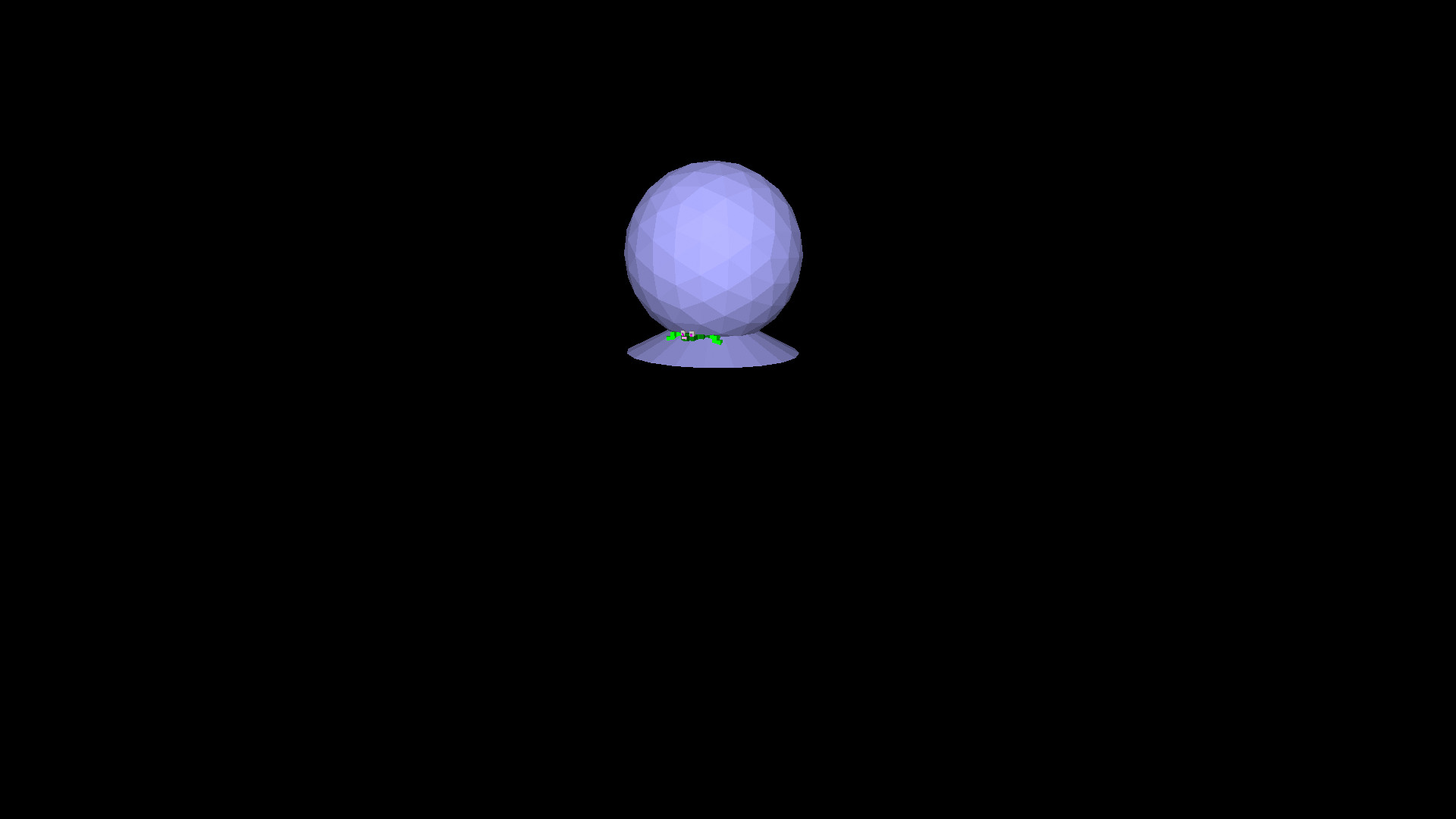
Lower the turtle and create the next cone segment
lo 5 cutcone 20 15 5 20

Lower the turtle again and create a larger cone
lo 5 cutcone 10 20 40 20
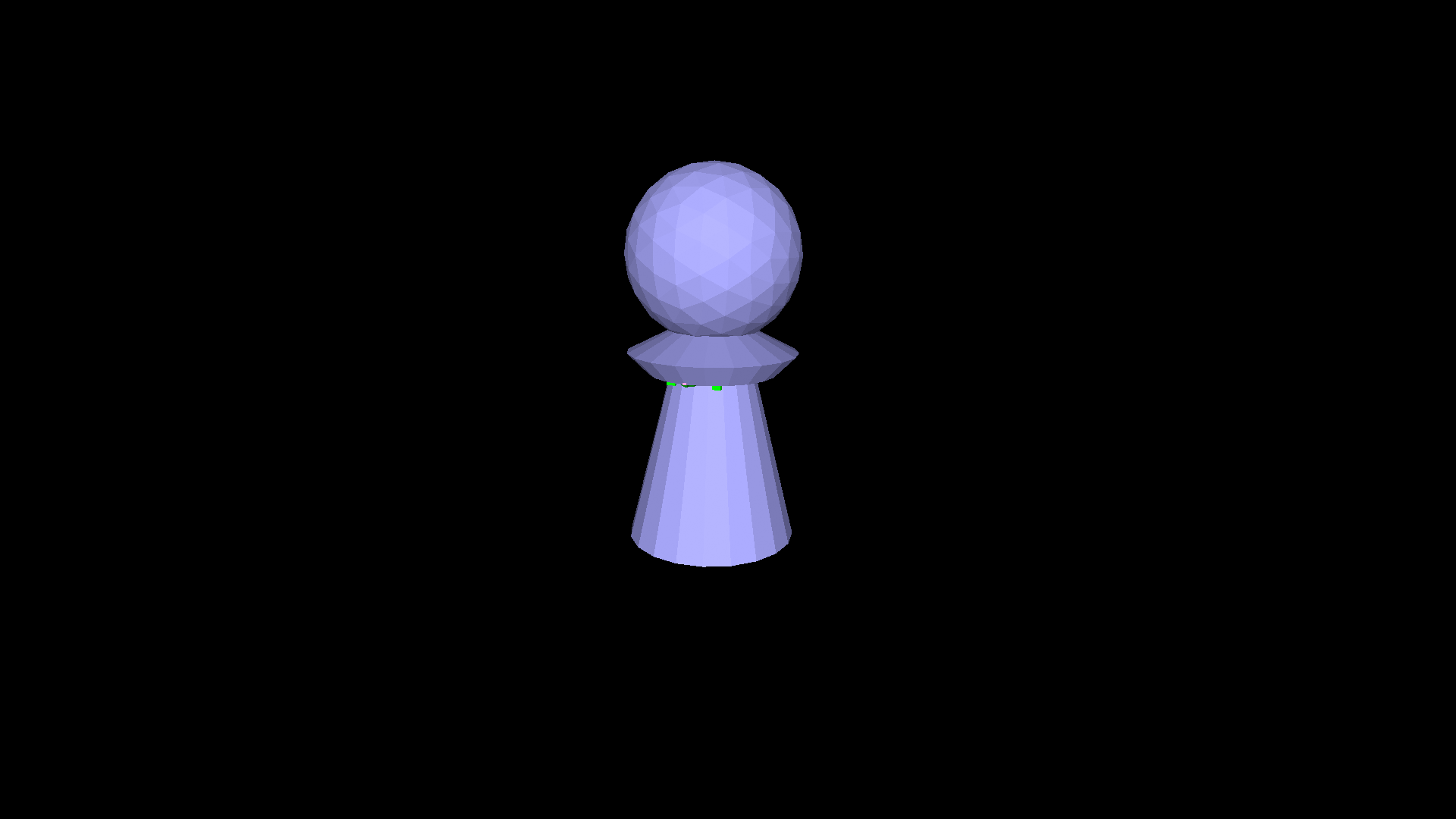
… smaller cone, but deeper than is visible so that the 3D printer slices the pawn correctly …
lo 40 cutcone 22 28 20 20
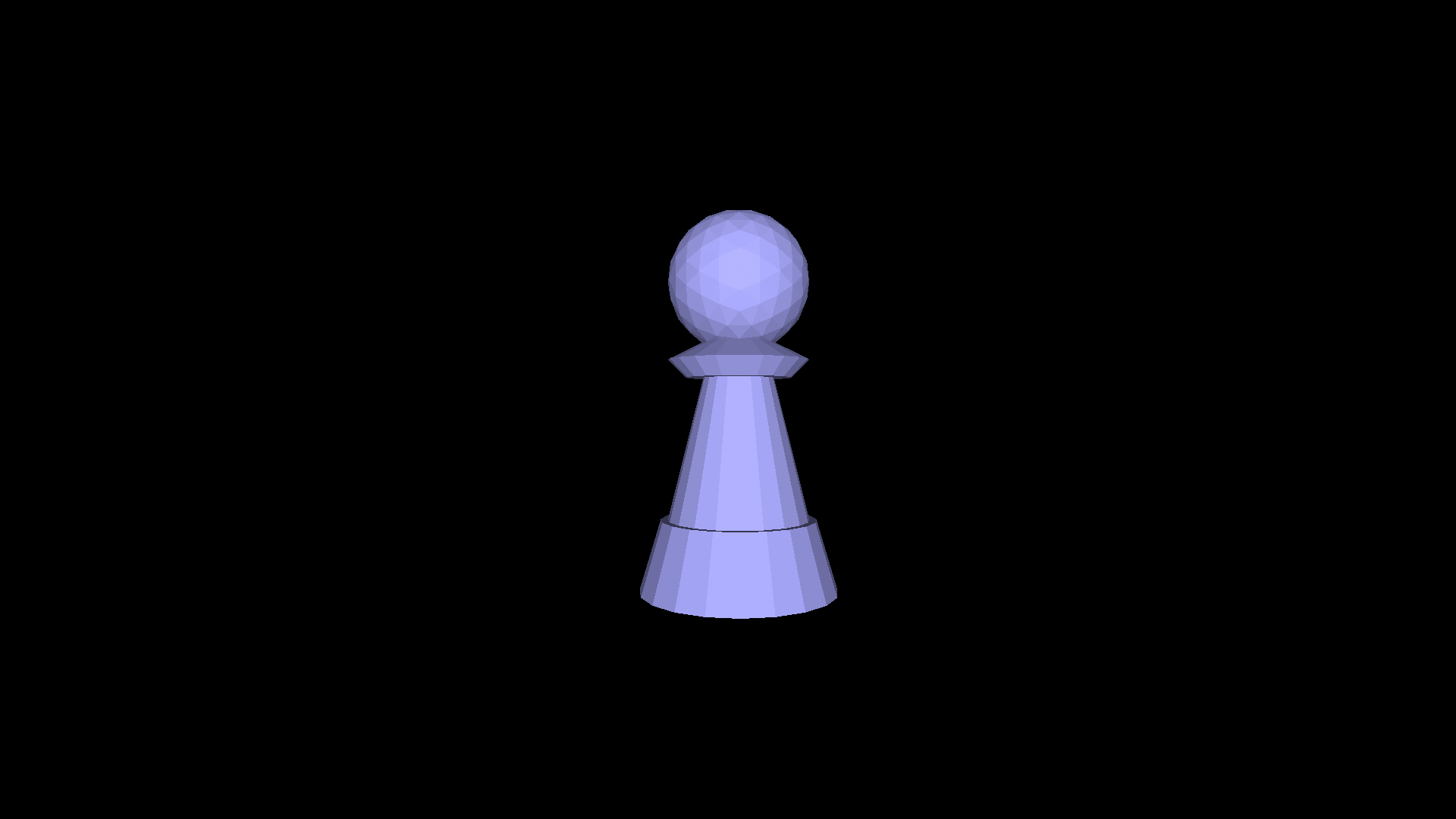
… a torus … (type help “torus to see the parameters)
lo 15 torus 5 24 20 20
… another torus …
lo 5 torus 3 28 20 20
… and a cylinder to finish the base! (type help “cylinder to see the parameters)
cylinder 31 5 20
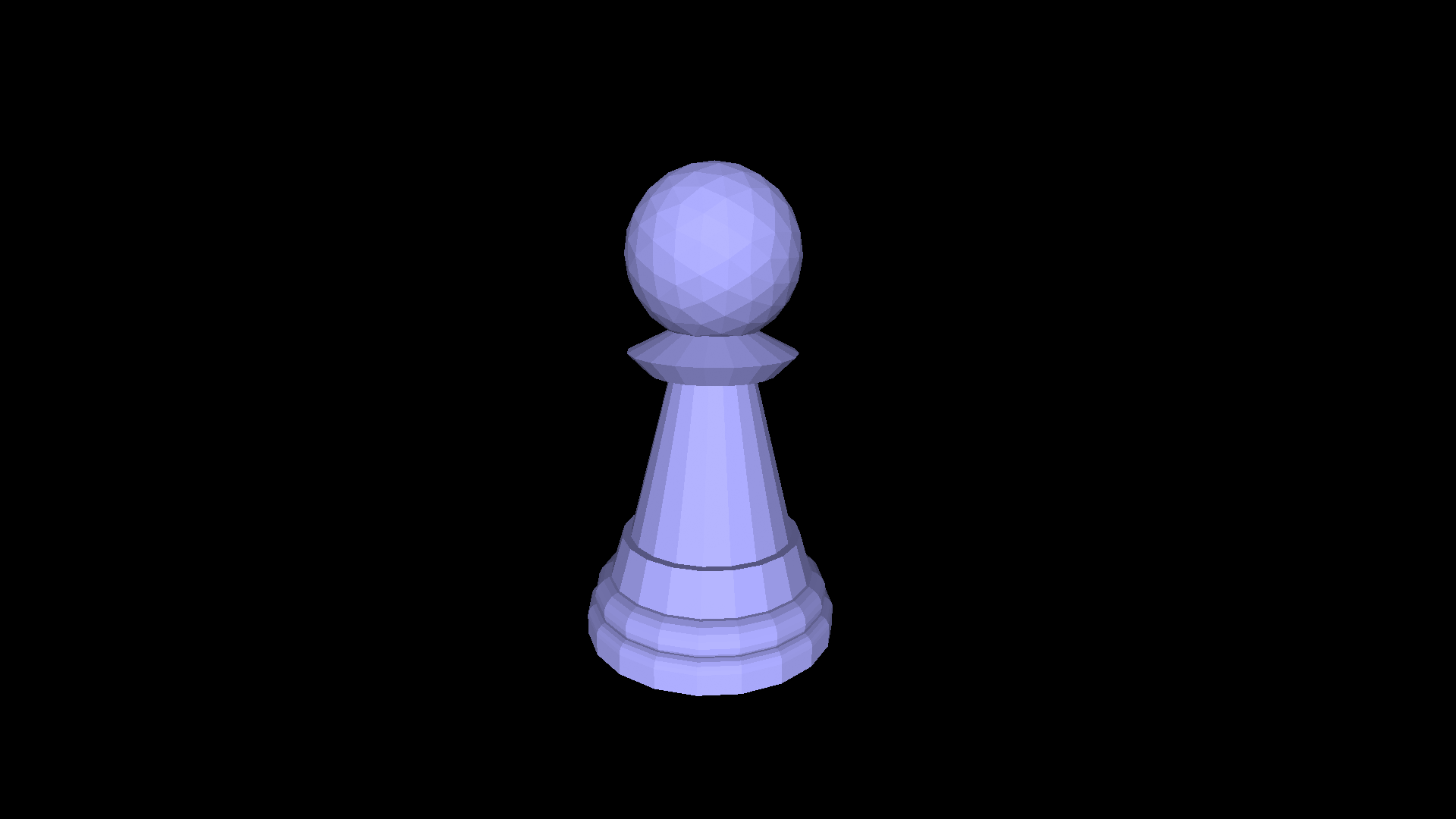
All done! Now you can download the STL file under the File menu, open it up in your slicing program and print it. But don’t forget to type hideturtle first or you might get a surprise!
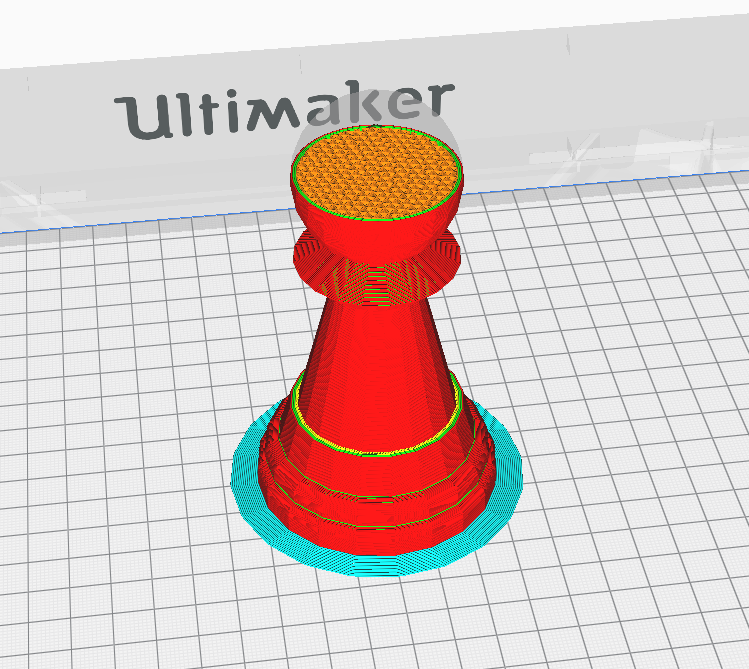
The pawn sliced in Ultimaker Cura…
The whole line of code should look something like this:
cs ico 20 dn 90 lo 17 cutcone 10 20 5 20 lo 5
cutcone 20 15 5 20 lo 5 cutcone 10 20 40 20 lo 40
cutcone 22 28 20 20 lo 15 torus 5 24 20 20 lo 5
torus 3 28 20 20 cylinder 31 5 20 hideturtle
Easy peasy! Click and hold the left mouse button over the model and drag to rotate it.
Read through the shape guides available under the Docs menu on this website and think about how you could create other chess pieces!
This is the chess pawn as a procedure:
TO pawn
  cs penup
  dn 90
  ico 20
  lo 17
  cutcone 10 20 5 20
  lo 5
  cutcone 20 15 5 20
  lo 5
  cutcone 10 20 40 20
  lo 40
  cutcone 22 28 20 20
  lo 15
  torus 5 24 20 20
  lo 5
  torus 3 28 20 20
  cylinder 31 5 20
  hideturtle
END
You can turn it into a procedure just by typing to pawn in the REPL, pressing the up arrow until you retrieve the pawn code, press enter, and then type end. Then you can save it!